On This Page
- Why Businesses Upgrade Their Domain
- Is It the Right Time?
- Step 1: Secure the New Domain
- Step 2: Plan the Move
- Step 3: Set Up 301 Redirects
- Step 4: Tell Search Engines
- Step 5: Move Email Carefully
- Step 6: Update Everything Else
- Step 7: Announce the Change
- Step 8: Monitor and Fix
- A Realistic Timeline
- Updating Important Backlinks
- Paying for the New Domain
- Common Rebranding Mistakes
- Rebranding Domain FAQs
Why Businesses Upgrade Their Domain
Many companies start on a compromise domain: a long variation, an unusual extension or a name with "get" in front. As they grow, the costs add up: customers mistype the address, email goes astray and the brand looks smaller than it is. Upgrading to the exact .com or a stronger brandable name fixes that.
It's a common move for growing startups, and it's usually far cheaper than living with a weak name for another decade.
Is It the Right Time?
Good Reasons to Switch
- Customers often mistype or forget your domain
- A competitor owns the .com of your name
- You're raising funding or expanding
- You're changing your brand name anyway
Reasons to Wait
- You're mid-launch or in a peak sales season
- You can't commit time to redirects and testing
- The new name isn't clearly better
Step 1: Secure the New Domain
Buy the new domain and complete the transfer before announcing anything. Check its history and run a trademark check. If you're using a payment plan, confirm you can point the domain to your site during the plan.
Step 2: Plan the Move
- Map every URL on the old site to its new equivalent.
- Keep the same URL structure where possible; it makes redirects simpler.
- Pick a quiet period for the switch.
- List everything that uses the old domain: email, payment providers, apps, ads, analytics and integrations.
Step 3: Set Up 301 Redirects
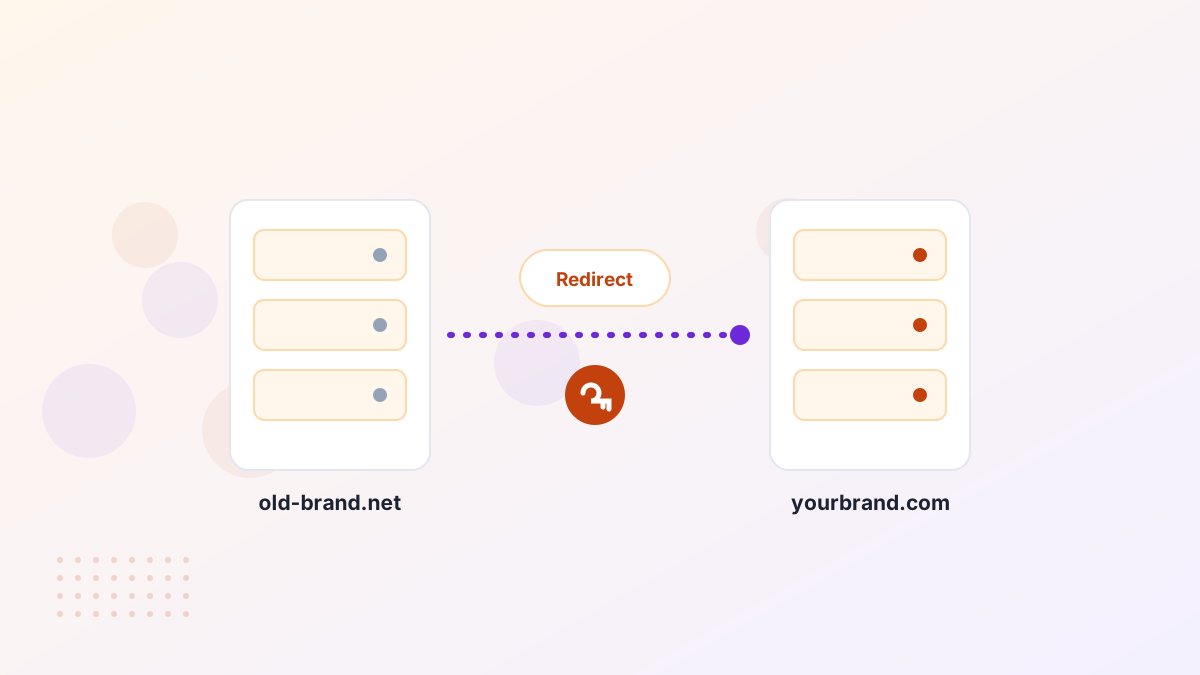
A 301 redirect tells browsers and search engines that a page has moved permanently. Redirect each old URL to its matching new URL, not everything to the homepage. Page-to-page redirects preserve the most search value and send visitors exactly where they expect.
Keep the old domain registered and redirecting for years, ideally for good. Old links, bookmarks and printed materials will keep sending visitors.
Step 4: Tell Search Engines
Add and verify the new domain in Google Search Console, then use the Change of Address tool from the old property once redirects are live. Submit a new sitemap. Bing Webmaster Tools offers a similar site move option.
Expect some fluctuation in rankings for a few weeks while search engines process the move. With clean page-to-page redirects, most sites recover their visibility.
Step 5: Move Email Carefully
Email is often the trickiest part. Set up the new domain's mail service, including SPF, DKIM and DMARC records, before switching. Keep the old addresses receiving and forwarding for a long time, because customers and suppliers will keep using them. See business email on your domain.
Step 6: Update Everything Else
- Website internalsInternal links, canonical tags and image paths.
- MarketingAds, social profiles, email signatures and templates.
- Business listingsMaps, directories and review sites.
- IntegrationsPayment, login, analytics and app settings.
- Print and physicalCards, signs, vehicles and packaging, as they're replaced.
Step 7: Announce the Change
Tell customers what's changing and why, and reassure them that the old address still works. A short email, a site banner and social posts are usually enough. Many companies frame it as a milestone, which it is.
Step 8: Monitor and Fix

For the first few weeks, watch Search Console for crawl errors, check that redirects work and monitor traffic and email delivery. Fix broken links quickly. Our guide to moving a website to a new domain covers the technical checks in more depth.
A Realistic Timeline
| When | What happens |
|---|---|
| Weeks before | Buy the domain, plan URL mapping, set up email and hosting |
| Switch day | Launch on the new domain, enable 301 redirects, submit change of address |
| First week | Check redirects, crawl errors, email delivery and integrations |
| First months | Monitor rankings and traffic, update listings and backlinks |
| Long term | Keep the old domain renewed and redirecting |
Updating Important Backlinks
Redirects pass visitors and most search value, but it still helps to update your most important links directly. Ask partners, directories and publications that link to you to update the URL. Start with the links that send the most traffic. It's not urgent, because redirects cover you, but it strengthens the new domain over time.
Paying for the New Domain
A premium upgrade is often a planned expense for a growing company. Many marketplace listings offer payment plans, which let you start using the new domain immediately while spreading the cost. If you plan the switch for a specific date, make sure the plan allows you to point DNS to your site from the start. See Atom payment plans.
Common Rebranding Mistakes
- Redirecting everything to the homepage, losing page-level value.
- Letting the old domain expire, breaking redirects and risking someone else catching it.
- Forgetting email authentication, sending messages to spam.
- Changing site structure at the same time, making problems harder to diagnose.
Rebranding Domain FAQs
Will changing domains hurt SEO?
There's usually a temporary dip, but with page-to-page 301 redirects and a Search Console change of address, most sites recover.
How long should you keep the old domain?
Ideally forever. It's a small yearly cost that protects your traffic and brand.
Can you switch domains without changing your brand name?
Yes. Many companies upgrade from a variation to the exact .com of their existing name.