On This Page
- Why Use Email on Your Own Domain
- Choosing an Email Provider
- The Records You'll Add
- Why Authentication Matters Now
- Step by Step
- DMARC Without the Headache
- Don't Forget Other Senders
- Protecting Your Sending Reputation
- What Each Record Looks Like in Practice
- How Many Mailboxes You Need
- Testing Before You Rely on It
- Moving Email to a New Domain
- Common Email Setup Mistakes
- Business Email FAQs
Why Use Email on Your Own Domain
Email from [email protected] tells customers they're dealing with a real business. It's also portable: you can switch email providers without changing your address. And it keeps company email under company control, rather than in employees' personal accounts.
Choosing an Email Provider
| Option | Good for | Consider |
|---|---|---|
| Major workspace suites | Most businesses; mail plus documents and calendars | Per-user monthly pricing |
| Privacy-focused providers | Sensitive communications | Fewer integrations |
| Host-included email | Very small sites | Often weaker deliverability and features |
| Email forwarding | Receiving only | Sending from your domain needs extra setup |
The Records You'll Add
Your provider will give you exact values. In general, you'll add:
| Record | Purpose |
|---|---|
| MX | Tells the internet where to deliver your email |
| SPF (TXT) | Lists the services allowed to send email for your domain |
| DKIM (TXT or CNAME) | Adds a digital signature proving messages weren't altered |
| DMARC (TXT) | Tells receivers what to do with mail that fails checks, and sends you reports |
Why Authentication Matters Now
Major mailbox providers have tightened their rules. Since 2024, Google and Yahoo have required authentication for bulk senders, including a DMARC record for those sending large volumes. Even small senders benefit: authenticated mail is far more likely to reach the inbox, and DMARC makes it harder for scammers to send email pretending to be you.
Step by Step
- Sign up with a providerAnd add your domain.
- Verify ownershipUsually with a TXT record.
- Add MX recordsRemove any old MX records you're replacing.
- Add SPFOne SPF record per domain, including every service that sends for you.
- Turn on DKIMAnd add the records your provider gives you.
- Add DMARCStart with monitoring, then tighten once reports look clean.
- TestSend to several major providers and check headers or a testing tool.
DMARC Without the Headache
A common approach is to start with a DMARC policy of "none", which only collects reports. Once reports show your legitimate senders pass, move to "quarantine" and then "reject". This gradual approach avoids accidentally blocking your own newsletters or invoices.
Don't Forget Other Senders
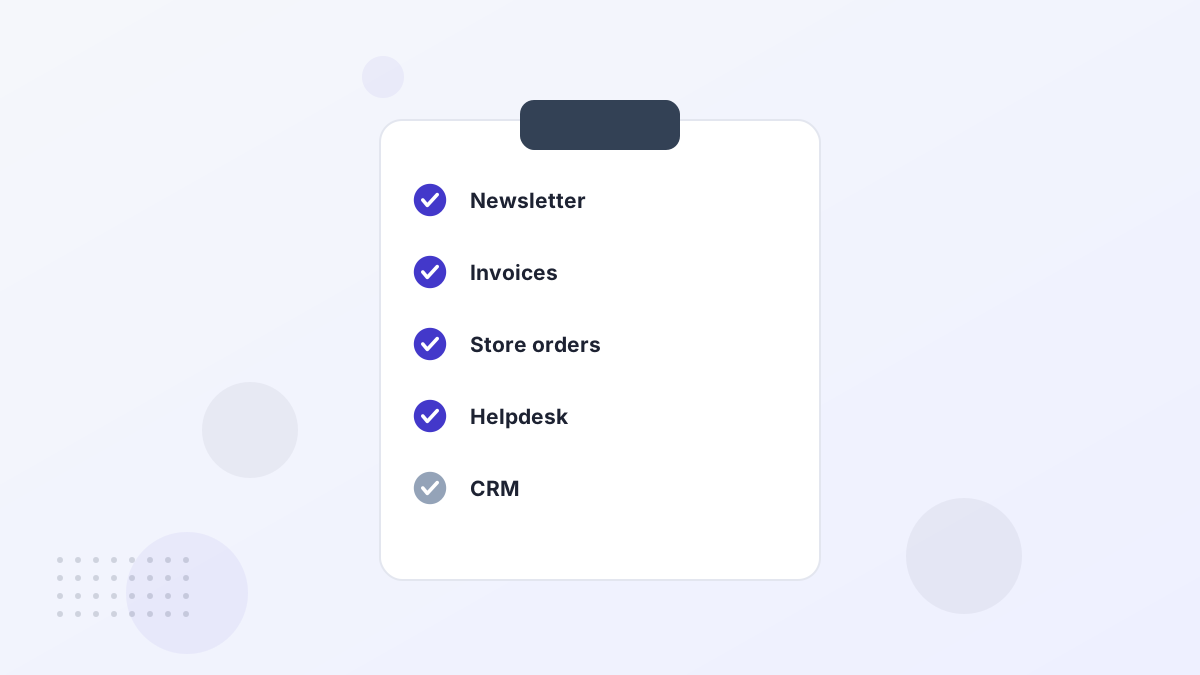
Many businesses send email through several services: newsletters, invoicing, store platforms, helpdesks and CRMs. Each one needs to be included in your SPF record or set up with its own DKIM. Missing one is a common reason for messages landing in spam.
Protecting Your Sending Reputation
- Use a subdomain for marketing, such as mail.yourbrand.com, to protect your main domain.
- Warm up new domains by sending gradually at first.
- Keep lists clean and honor unsubscribes.
- Check blocklists if you bought a previously used domain.
What Each Record Looks Like in Practice
You don't need to write these records yourself, because your provider supplies them. But it helps to recognize them. An SPF record is a TXT record starting with "v=spf1", followed by the services allowed to send for you and ending with a rule such as "~all". A DMARC record is a TXT record at _dmarc.yourbrand.com starting with "v=DMARC1" and a policy such as "p=none". DKIM records hold a long public key, usually at a name your provider chooses.
If something stops working, these are the first places to look. A typo in one character can cause messages to fail checks.
How Many Mailboxes You Need
Workspace providers usually charge per user. Small teams often save money by using aliases and groups rather than a mailbox for every function. For example, hello@ and support@ can be aliases or shared inboxes that deliver to the right people, while each person has one paid mailbox.
| Address | Typical setup |
|---|---|
| firstname@ | A personal mailbox for each team member |
| hello@ or info@ | Alias or shared inbox for general inquiries |
| support@ | Shared inbox or helpdesk |
| billing@ | Alias to finance |
Testing Before You Rely on It
Before printing business cards, send messages from your new address to accounts at several major providers, reply to them and check they arrive in the inbox. Many free tools analyze a test message and show whether SPF, DKIM and DMARC pass. Fix any failures before you start sending invoices or newsletters, because a poor early reputation takes time to repair.
Moving Email to a New Domain
If you're switching domains, set up the new domain's email fully before announcing the change. Keep the old domain receiving and forwarding for a long time, and add an auto-reply or signature noting the new address. See rebranding to a premium domain.
Common Email Setup Mistakes
Two SPF Records
Causes SPF to fail. Merge them into one.
Forgotten Senders
Newsletters or invoices not covered by SPF or DKIM.
Jumping to Reject
A strict DMARC policy before checking reports can block your own mail.
Old MX Records
Leftover records send some mail to the old provider.
Business Email FAQs
Can you use email on a domain without a website?
Yes. Email only needs MX and authentication records.
Why are your emails going to spam?
Missing or incorrect SPF, DKIM or DMARC is the most common reason, followed by poor domain reputation.
Can you have more than one SPF record?
No. Combine all senders into a single SPF record.